
























![Kingdom Hearts Collection [I-III] Review](https://gazettely.com/wp-content/uploads/2026/10/Kingdom-Hearts-Collection-I-III-1-360x180.webp "Kingdom Hearts Collection [I-III] Review: KHII Holds Steady as Newer Entries Fluctuate 37")




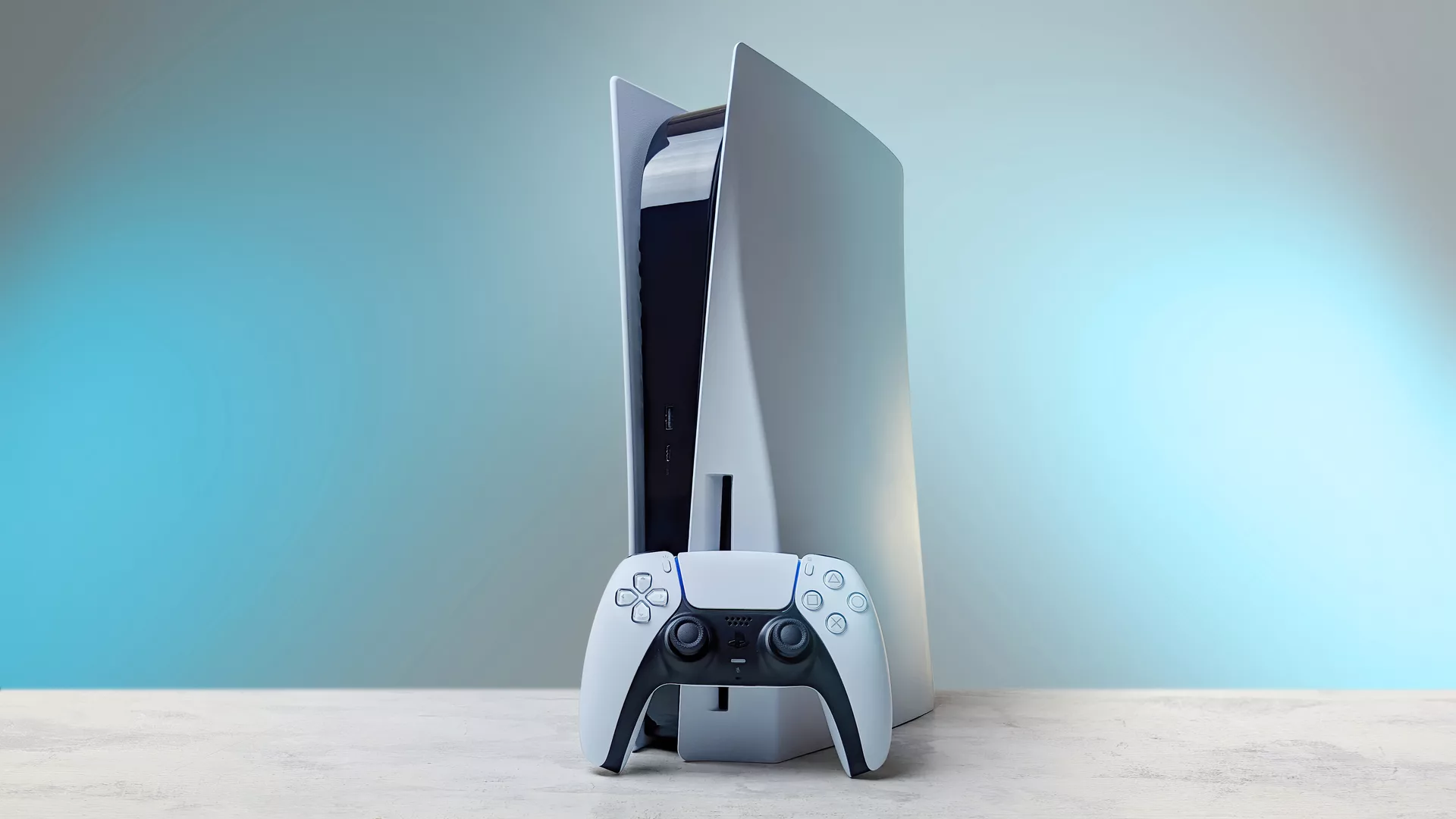
The PlayStation 5 (PS5), as an evolutionary step in Sony’s gaming console lineage, carries forward many distinguishing characteristics from its predecessors. This continuity in design and function plays a vital role in maintaining the essence of the PlayStation experience, which users have come to cherish over the years. One of the most versatile features carried over from previous generations is the ability to pair your PS5 console with the official PlayStation mobile application.
The PlayStation mobile application is not a novel innovation, but its utilitarian nature has made it a mainstay in the gaming community for quite some time. Utilizing this app allows PlayStation users to enhance their gaming experience significantly by exploiting a wide array of features tailored to offer convenience and flexibility.
These features are designed to keep you connected with your PS5 console, regardless of your location. As a result, you can interact with your gaming profile whenever you desire. One of the standout advantages of the mobile app is the ability to initiate game purchases or download content without the need to switch on the console physically.
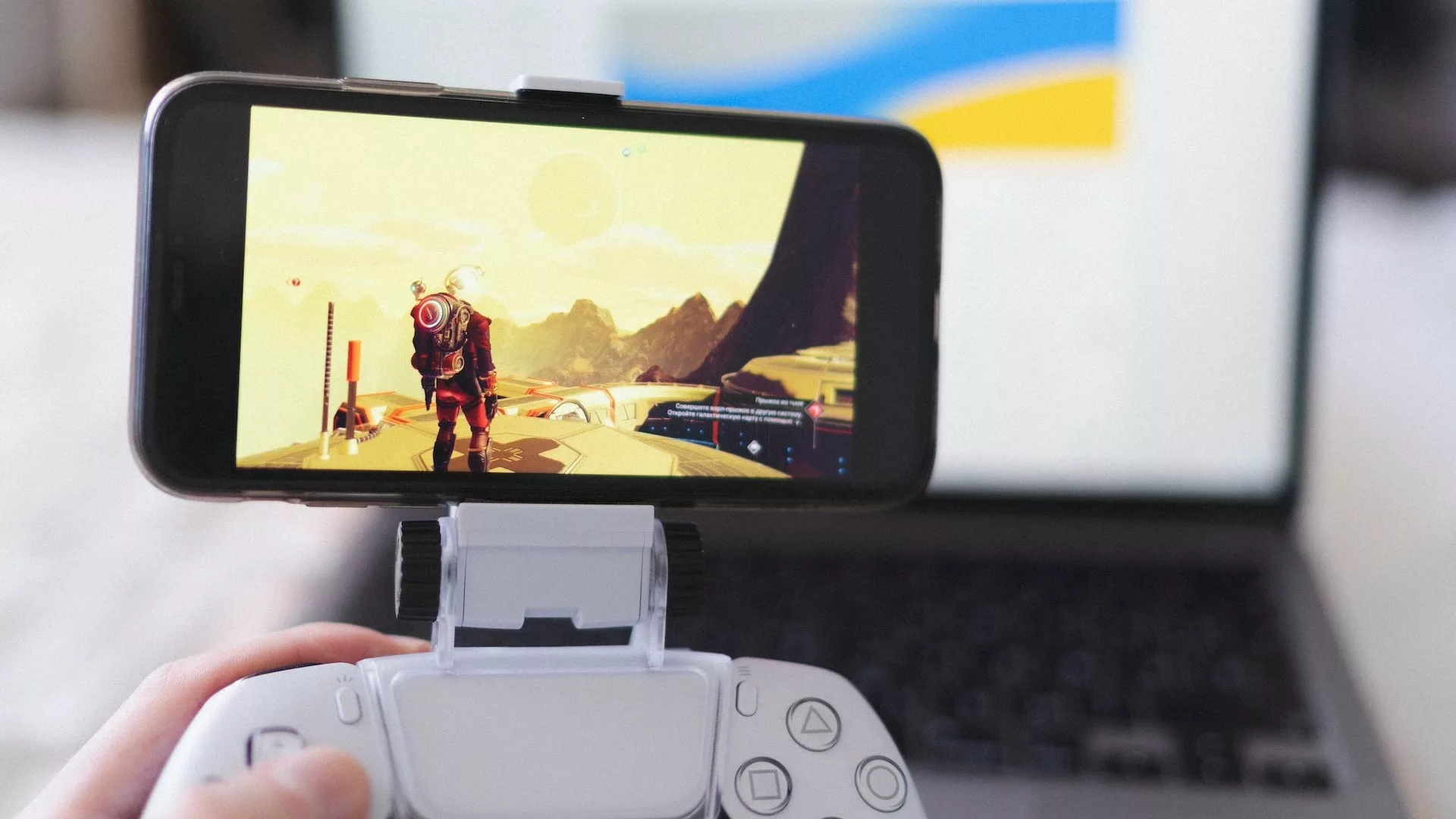
Another beneficial function inherited from previous PlayStation generations is the PS Remote Play. While this feature also has its own separate app, it integrates effortlessly with the official PlayStation mobile app. The prime use of PS Remote Play is to allow users to access and play their PS5 games not just from a mobile device but also from a PC.
The integration options offered by PS Remote Play are diverse and adaptable, promising a wide range of possibilities for every PlayStation gamer. Establishing the link between your PS5 console and your preferred device via the Remote Play feature will only require a few minutes of your time.
Getting started with this wonderful feature is quite straightforward. The key requirement is to ensure that you’re using the same PlayStation Network account on both your PS5 console and the mobile application. With this synchronization, you can enjoy an extended, unobstructed, and enriched gaming experience. The following is a user-friendly guide that will help you connect your PlayStation 5 to your mobile device seamlessly.
A Comprehensive Guide: Connecting Your PS5 to Mobile
Connecting your PlayStation 5 (PS5) to your mobile device enhances the gaming experience by offering unprecedented control and flexibility. This easy-to-follow guide provides you with step-by-step instructions on how to establish this connection, regardless of whether you use an Android or iOS device.
Starting Off: Downloading the PlayStation App
Kickstart your journey by downloading the PlayStation App onto your mobile device. This app is designed with a wide compatibility range that encompasses both iOS and Android devices. Hence, whether you want to connect your iPhone to your PS5 or an Android device, you’re covered.
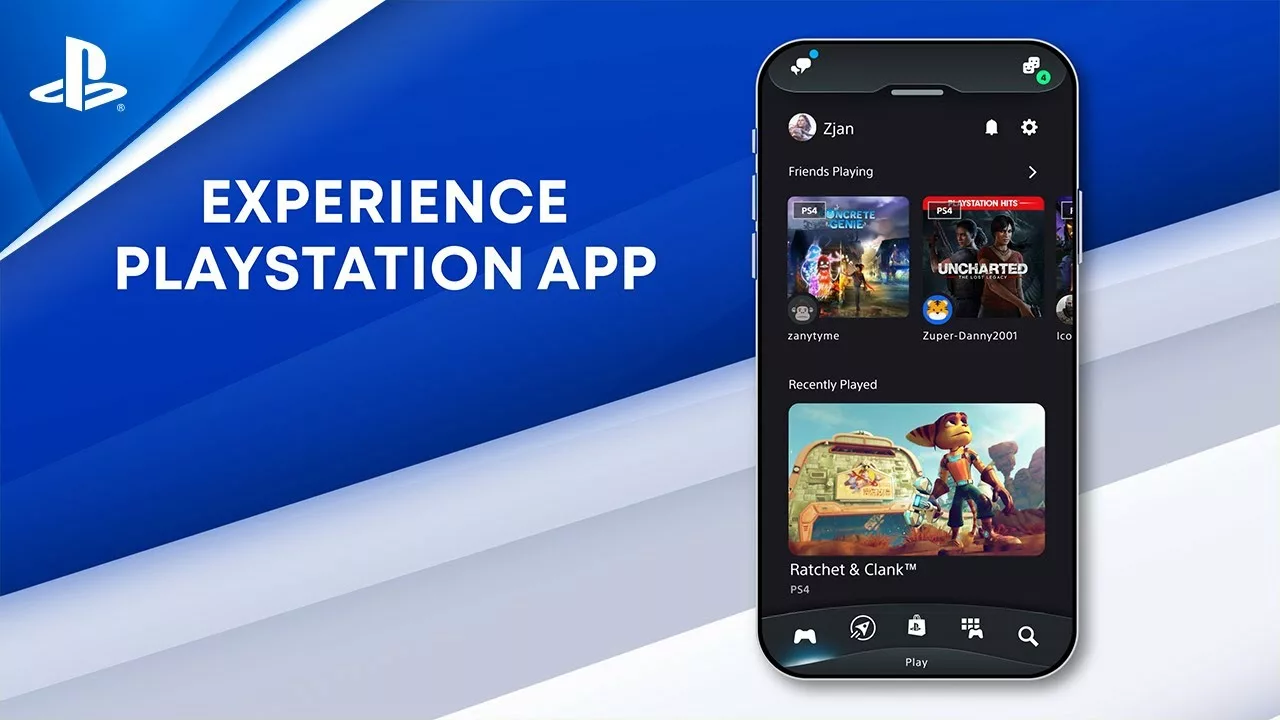
After successfully downloading the app, launch it and proceed to input your user credentials to log in. Please bear in mind that connecting your mobile device with your PS5 via the PlayStation App requires access to your user data. Therefore, you’ll need to consent to this as part of the linking process. Alternatively, you could adjust your settings to tailor the level of data access you’re comfortable with.
Learning the Ropes: The Introductory Guide
Upon your initial login, you’ll encounter an introductory guide designed to acquaint you with the basic features and functionalities of the application. This guide will provide you with a smooth transition into the subsequent step of connecting your PS5 console to your mobile device.
Simply tap on the “Select Console” button, which will then present you with a list of consoles linked to your account. If you own multiple PS5 consoles, the app allows you to select based on the most recent activity recorded for each console.
After this, you’ll receive an optional prompt regarding notifications about new products, special offers, and other promotions. You’re free to either agree to receive these notifications or opt to skip this step.
Reaping the Rewards: Accessing Your Profile Information
Once the linkage process is successful, the application immediately loads your profile information. On the main screen, you’ll be able to view various aspects of your gaming history, such as recently played games and the trophies you’ve earned. This serves as the ultimate confirmation that you have successfully connected your PS5 console to your mobile device.
From here on out, your PlayStation experience will reach new heights. You’ll have the power to manage purchases, downloads, and profile settings without having to turn on your console physically. In addition, you’ll gain easy access to your chat groups, and you’ll be able to view which of your friends are online right from the application’s main screen.
Bridging the Gap: Connecting the PS5 DualSense Controller to Your Mobile
Pairing your PlayStation 5 (PS5) DualSense controller with your mobile device is a game-changer, offering an elevated gaming experience. This guide provides clear, easy-to-follow steps to establish this connection, further enhancing your gaming adventure.
Clearing Confusion: PS Remote Play vs. PlayStation App
Before delving into the connection process, it’s essential to understand the difference between the PlayStation App and PS Remote Play. PS Remote Play is a fantastic feature that enables you to play your PS5 games on your mobile device. However, this guide will focus solely on how to connect your PS5 DualSense controller to your mobile using the PlayStation App.
Bluetooth Activation: The First Step
The initial step in the process involves activating the Bluetooth feature on your mobile device. Whether you’re using an iOS or Android device, this can be easily done through your device’s settings. Once your Bluetooth is up and running, it’s time to prepare your PS5 controller for connection.
Controller Activation: Getting Your DualSense Ready
Next, focus on your DualSense controller. Locate the “Share” button (also known as the capture button) and the PS button, which is nestled between the two analog sticks on your controller. Simultaneously hold down these two buttons until your controller starts to emit a blinking blue light, signaling its readiness for pairing.
Establishing the Connection: Pairing Controller and Mobile
Now, navigate back to the Bluetooth settings on your mobile device. Here, you’ll need to look for an option to pair or link a new device. Upon selecting this, your device will start searching for available devices within range.
As your DualSense controller is in pairing mode, it should appear in the list of available devices. Simply select “DualSense” from the list to initiate the pairing process. Accept the connection request to finalize the pairing process.
Reaping the Benefits: Gaming with the DualSense on Mobile
Congratulations, you’ve now successfully connected your PS5 DualSense controller to your mobile device! With this established connection, you can enhance your mobile gaming experiences by using the PS5 controller. The immersive haptic feedback and adaptive triggers of the DualSense controller can now be part of your mobile gaming sessions.
Troubleshooting PS5 Remote Play: Possible Solutions
Despite the vast conveniences and advantages that PlayStation 5’s (PS5) Remote Play feature brings to the gaming experience, there may be instances when it fails to function as expected. However, there’s no cause for alarm, as most issues can be resolved with a few simple checks and adjustments.
Understanding PS5 Remote Play Limitations
First and foremost, it’s crucial to understand that PS5’s Remote Play (often referred to as PS Remote Play) comes with certain limitations, as laid out on the official PlayStation website. Not all games in the PlayStation catalog support this feature, so ensure the game you’re trying to play is Remote Play compatible.
In addition, Remote Play is not supported when streaming from both PS4 and PS5 consoles. Apart from these restrictions, if you’re still having trouble with PS Remote Play, PlayStation recommends a few checks and changes on your console.
Pre-Checks and Console Configuration: Ensuring Optimal Setup
Here are some necessary conditions that need to be met for PS Remote Play to work seamlessly:
- Ensure that your console is either switched on or in sleep mode. PS Remote Play won’t work if your console is completely switched off.
- Double-check if Remote Play is activated on your console. This feature needs to be enabled for it to function correctly.
- Make sure your system software is updated to the latest version. Outdated software may interfere with PS Remote Play’s functioning.
Dealing with Slow Connections: Evaluating Network Speed
Even after ticking all the boxes above, you might find that PS Remote Play is working, but the connection is too slow for comfortable gaming. In such cases, it’s important to evaluate your network speed.
You can easily check this directly from your PS5 console. Go to the Settings, then navigate to the “Network” section. Here, select “Connection Status,” followed by “Test Internet Connection”. This test will evaluate the network speed of your device.
For PS Remote Play to work optimally, your internet connection speed needs to be a minimum of 5 Mbps for both uploads and downloads. If your current network speed is below this threshold, you might consider upgrading your internet plan for better performance.
Home Network Traffic: Managing Device Connections
Finally, remember that the number of devices connected to your home network can influence the performance of your PS5’s Remote Play. If there are multiple devices using the same network, they could be competing for bandwidth and slowing down your console’s internet speed.
In conclusion, troubleshooting PS5’s Remote Play involves understanding the feature’s limitations, ensuring your console is correctly configured, checking your network speed, and managing your home network traffic. These steps should help restore your Remote Play feature and get you back to enjoying a seamless gaming experience.
Frequently Asked Questions (FAQs)
1. How can I establish a connection between my PlayStation 5 (PS5) and the PlayStation mobile application?
To link your PS5 with the PlayStation mobile app, first, download and initiate the application on your mobile device. Log in using your PlayStation Network credentials. Choose the option labeled “Select Console”, and pick your PS5 from the list of consoles associated with your account. The display of your profile information signifies a successful connection.
2. What functionalities does the PlayStation mobile application provide
The PlayStation mobile application grants you the ability to engage with your gaming profile from anywhere and at any time. It offers you the convenience of starting game purchases, downloading content, adjusting your profile settings, and engaging in your chat groups, all without the need to physically power up your console.
3. How can I pair my PS5 DualSense controller with my mobile device
To link your PS5 DualSense controller with your mobile device, first, enable the Bluetooth feature on your mobile. Subsequently, trigger the pairing mode on your DualSense controller by concurrently pressing the “Share” and “PS” buttons. In your mobile’s Bluetooth settings, find and select “DualSense” from the list of nearby devices to commence pairing.
4. Can you elaborate on the PS Remote Play feature and its operation?
PS Remote Play is a handy feature that empowers users to access and play their PS5 games on a PC or a mobile device. To leverage it, make sure that your console is either powered up or in sleep mode, the Remote Play function is turned on, and your system software is the latest version. It’s also crucial to maintain a steady internet connection with a minimum speed of 5 Mbps for both upload and download processes.
5. What are the typical issues encountered with PS Remote Play and how can they be addressed?
Common challenges with PS Remote Play revolve around sluggish connections and incompatibility with certain games or simultaneous streaming from PS4 and PS5 consoles. To tackle these, it’s essential to have your console set up correctly, monitor your network speed, and manage the devices connected to your home network to optimize the performance of PS Remote Play.